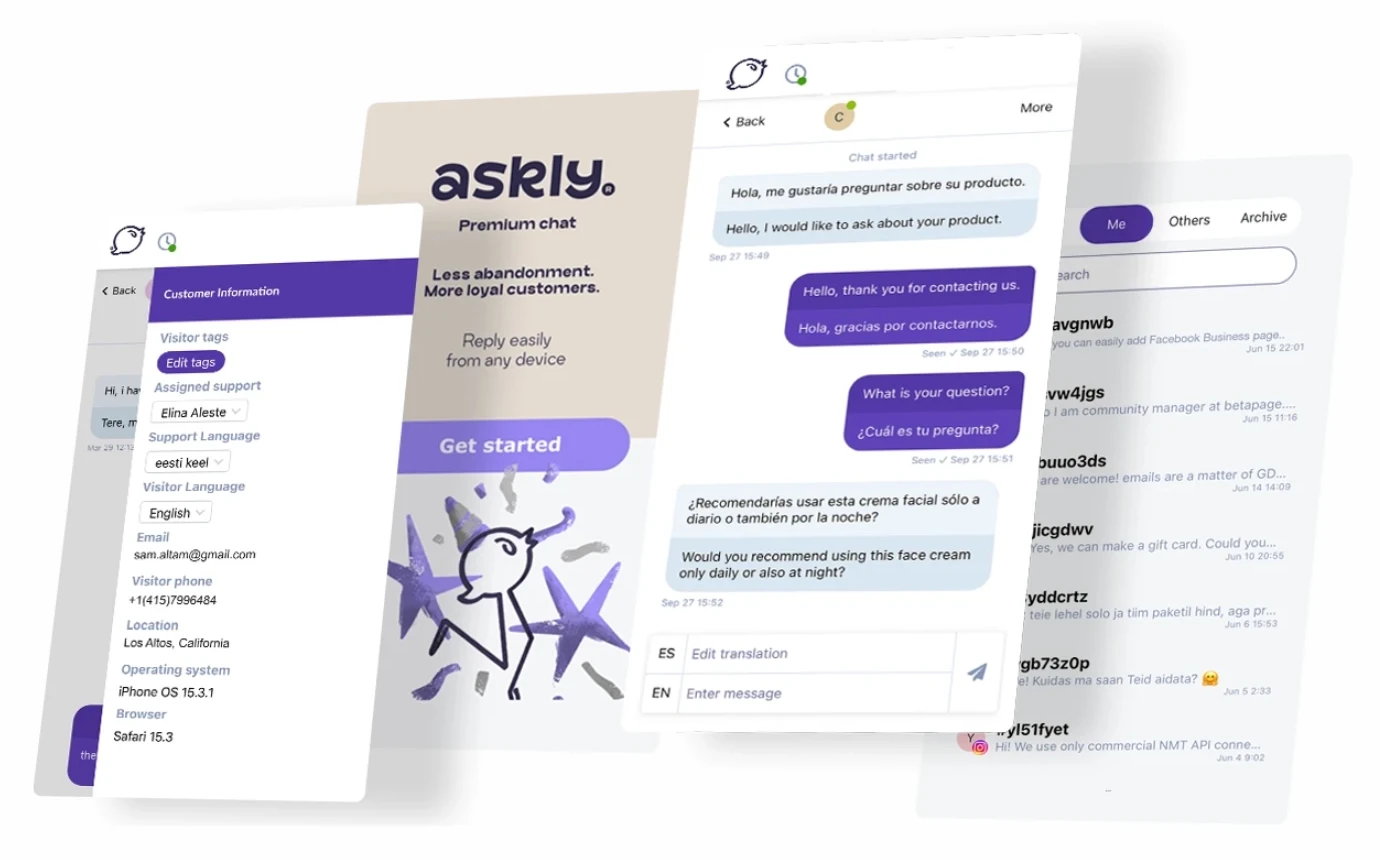

New Askly social media support agent is now live. Included in your plan.

Guides

Every step explained.

From sign-up and adding the chat window to AI and the voice agent. These short guides help you set up Askly yourself.

Sign up

Create your account at chat.askly.me/register. It takes about a minute. Askly then creates your personal script to add to your site.

Next, set up the AI Support Agent. The system guides you step by step. It takes a few minutes and needs no developer.

Before you start, keep three principles in mind:

  1. Never answer the same question twice. Repeat questions are the AI's job. Your team handles the harder, more valuable conversations.
  2. Train the AI like a new colleague. Give it product info, answers and processes, just as you would a new hire.
  3. Start safely. Choose AI + human, so a person is always close by.
Add Askly to your site

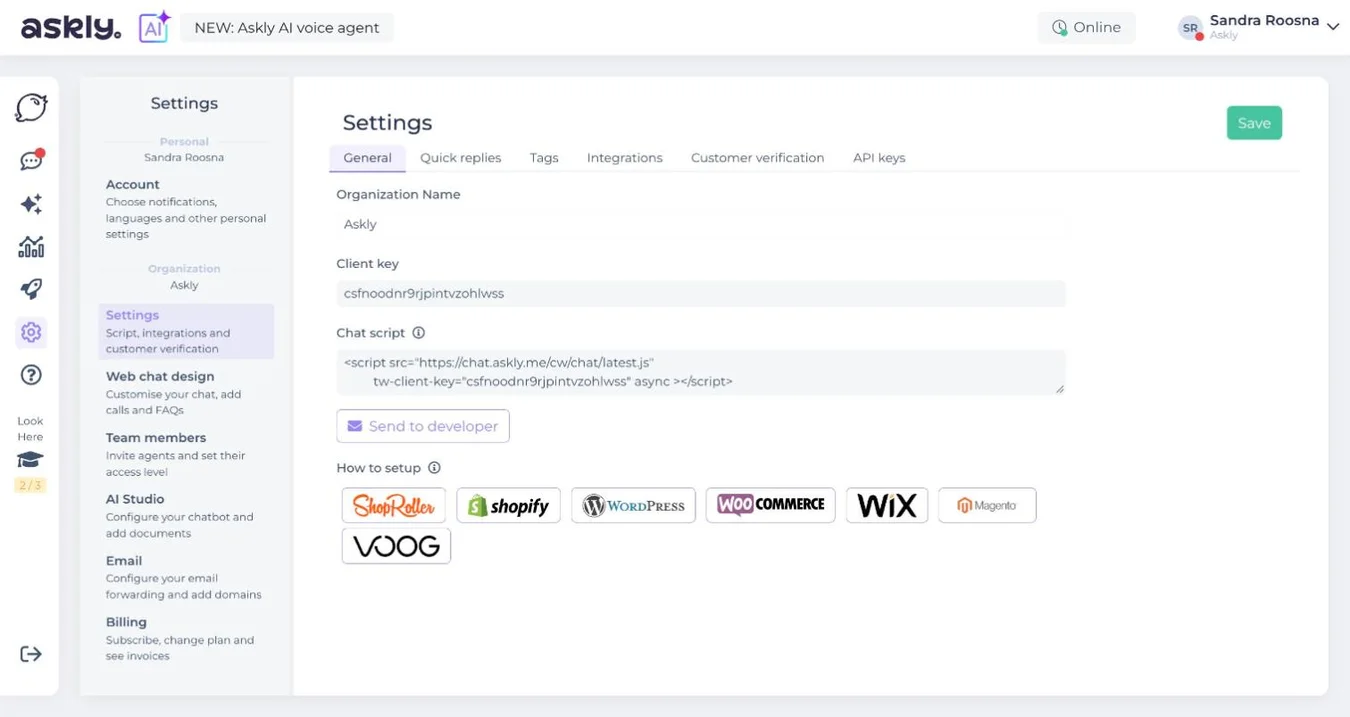
Settings › General › Chat script

Copy your Chat script. Under How to setup you'll find a guide for your platform (ShopRoller, Shopify, WordPress, WooCommerce, Wix, Magento, VOOG). It shows where the script goes on your site.

Or click Send to developer, and your developer adds the script to your site's source code.

Once the script is live, the Askly chat icon appears on your site. Visitors can write to you, and you reply in Askly.

Askly Settings, General tab: Organization Name, Client key, Chat script, the Send to developer button and How to setup guides

Stuck? We'll guide you in the chat window.

Choose your chat window design

Settings › Web chat design › Chat

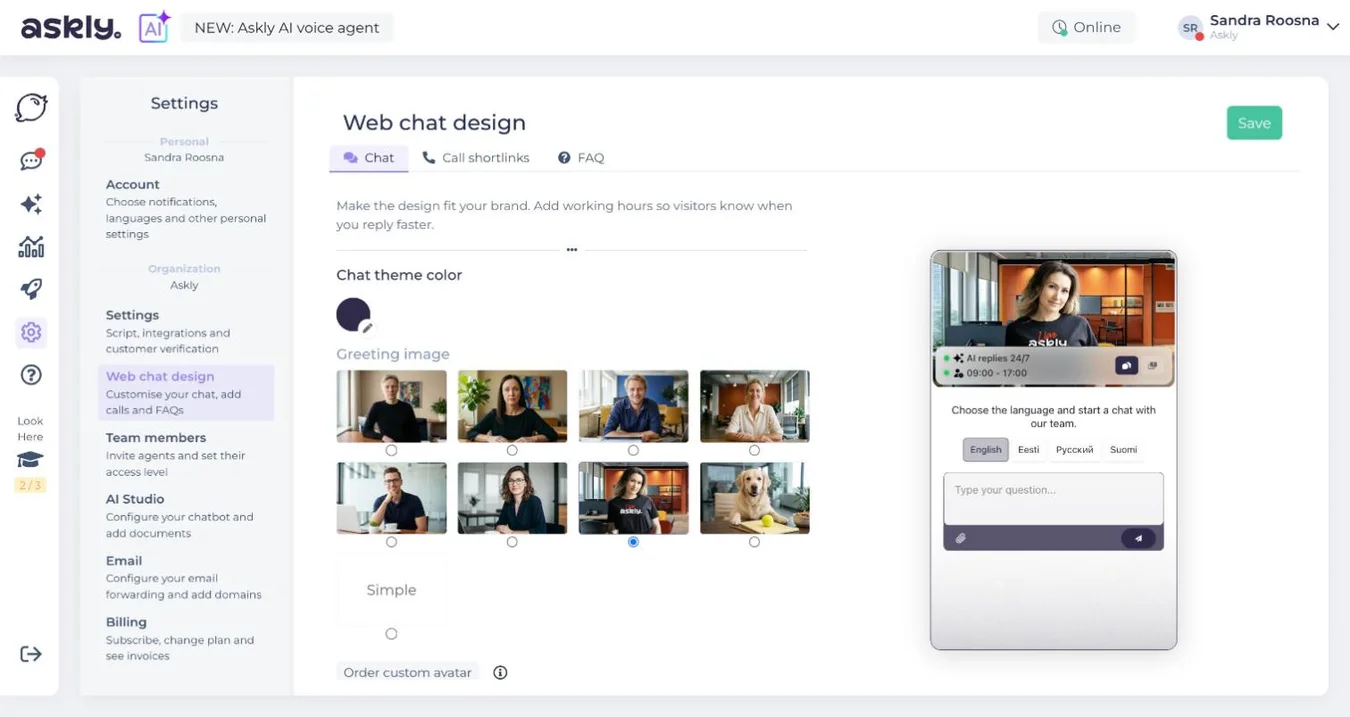
Pick a Chat theme color to match your site. Choose a Greeting image from the gallery, or order a personal avatar. It could be your CEO, sales manager, office dog or mascot.

Under Chat languages, choose up to five main support languages. Askly detects the visitor's language itself. In the rare cases it can't, your main languages step in.

On the right, you see straight away how the chat window will look on your site.

Askly Web chat design, Chat tab: Chat theme color, Greeting image gallery and chat window preview

Add opening hours

Settings › Web chat design › Chat › Chat online hours

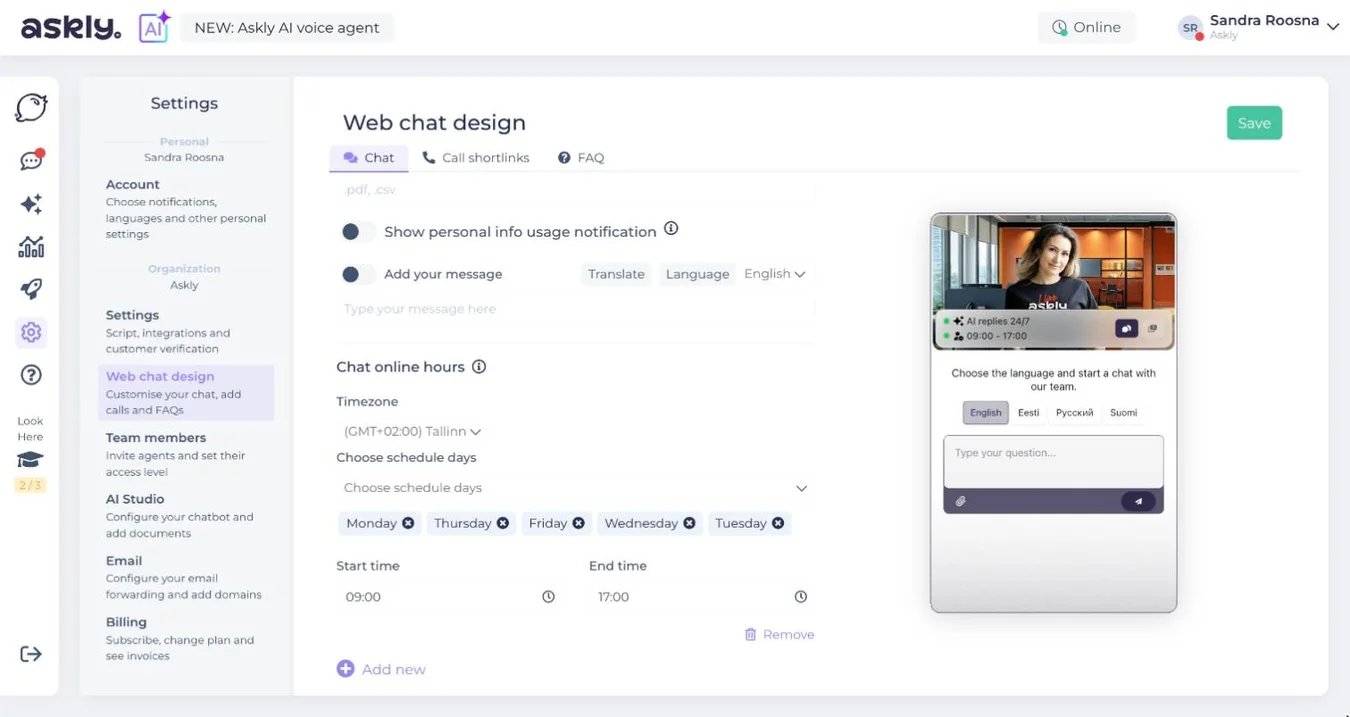
If you use AI + human, add your team's working days and hours. They show customers when a person will reply if the AI has no answer.

Choose a Timezone, Choose schedule days, and set Start time and End time. Click Add new to add several time slots to one day, for example 9.00–12.00 and 13.00–17.00. Changes reach the chat window within a minute.

Askly Web chat design, Chat online hours: Tallinn timezone, Monday to Friday, start time 9.00 and end time 17.00

Add an FAQ to the chat window

Settings › Web chat design › FAQ

The FAQ appears in the chat window menu. Customers find key information even faster.

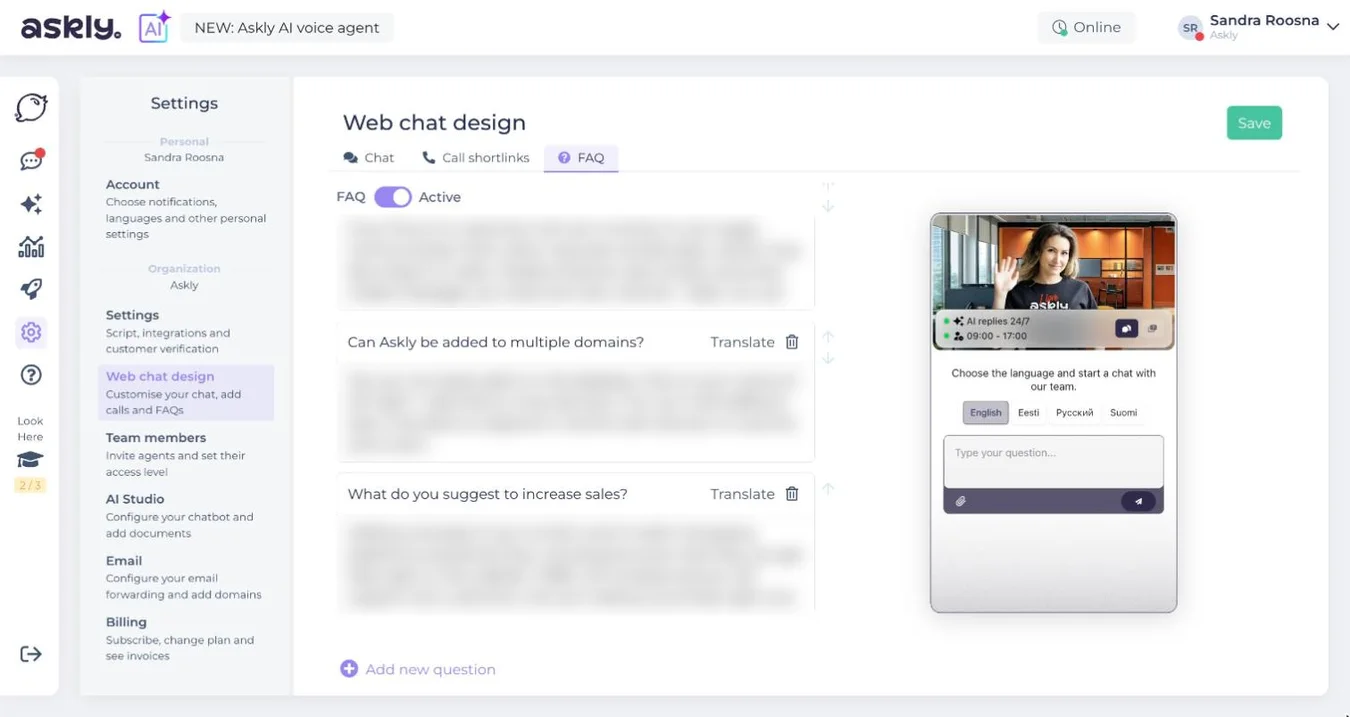
  1. Switch on FAQ Active.
  2. Choose the language you'll write the questions and answers in.
  3. Click Add new question, add questions and answers, then click Translate and Save.

With translation, every visitor reads the FAQ in their own language. You can edit the translation in any language: choose it, make the change and save.

Askly Web chat design, FAQ tab: FAQ Active switched on, language selection, questions, the Translate and Add new question buttons

Set up the AI Support Agent

AI Studio › AI Customer Service

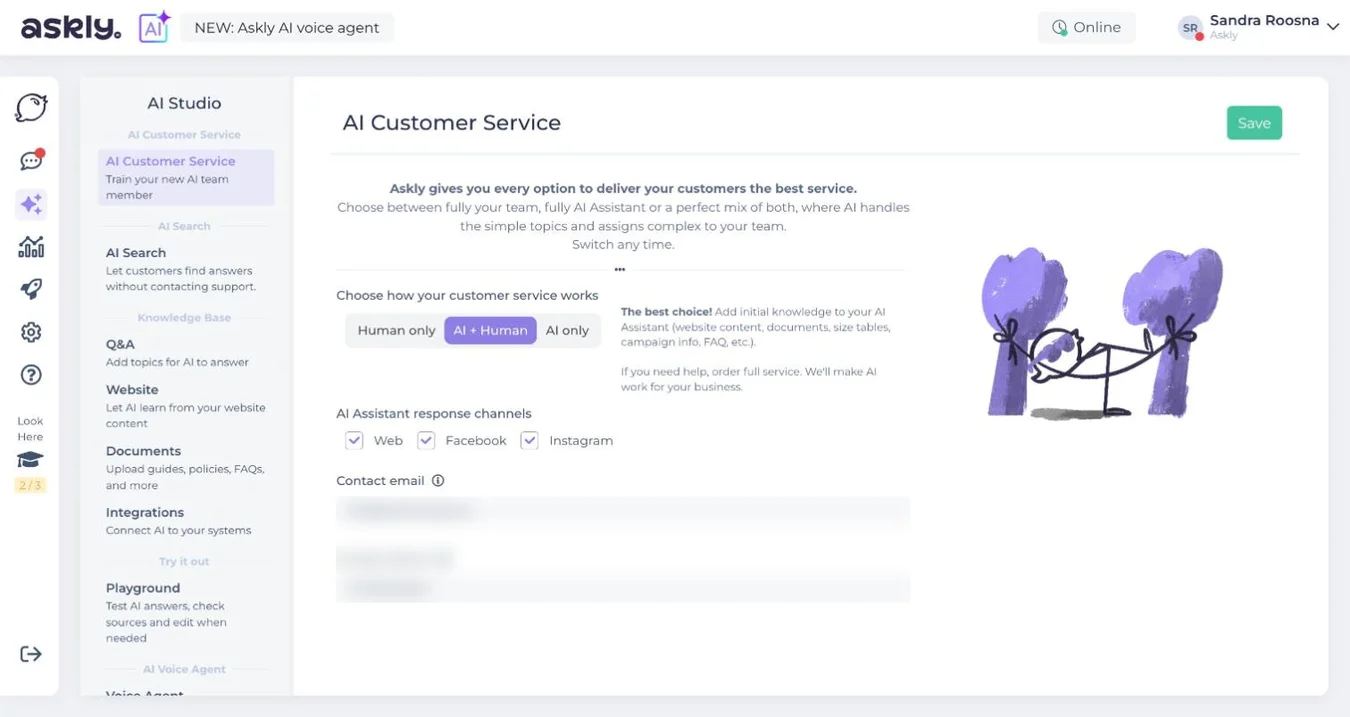
Choose who replies: Human only, AI + Human or AI only. You can change this at any time. Under AI Assistant response channels, tick where the AI replies: website, Facebook and Instagram.

The AI learns from your Knowledge Base: Q&A, Website and Documents (guides, rules, FAQs). If the AI can't answer, it politely passes the question to your team.

Askly AI Studio, AI Customer Service: Human only, AI + Human and AI only modes, AI Assistant response channels, contact email and phone

You can also order the AI Support Agent as a full service. The Askly team trains, tests and improves it for you. Ask for a quote in the chat window.

Test your AI Support Agent

AI Studio › Try it out › Playground

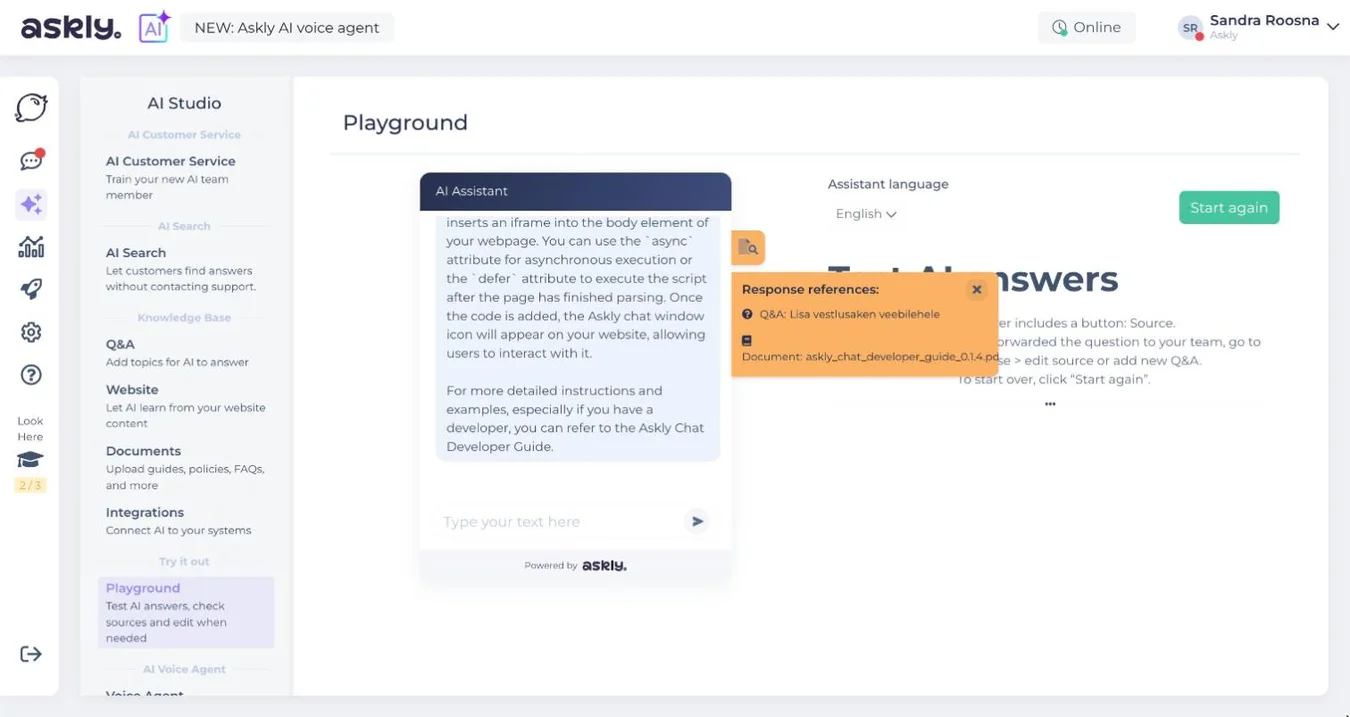
Want to test your AI Support Agent, or see which source it used for an answer? Open the Playground, choose the Assistant language and type a question. Then click the Source button under the answer. Click Start again for a new test.

The Playground is here: chat.askly.me/assistant/chat

Askly Playground: an English AI answer about adding Askly to a website and the orange Response references box listing the pages the AI used

Connect the AI to your systems

AI Studio › Knowledge Base › Integrations

The AI can add data from your systems to its answers:

  • E-commerce platforms (Shopify, WooCommerce): the AI shows customers their order status, delivery info and order history.
  • Inventory: the AI answers stock and availability questions.
  • Booking systems: the AI checks free slots.
  • CRM: the AI recognises regular customers and takes their history into account.

The AI only makes a request when the question needs it, such as "Where's my parcel?". Every request can be tracked. For other questions, the AI uses the knowledge base.

AI Voice Agent

AI Studio › AI Voice Agent › Voice Agent

The AI Voice Agent answers phone calls from the same knowledge base as your written AI Support Agent. One source, many channels.

Calls are transcribed. If the voice agent can't find an answer, it won't leave the caller alone. The question goes to your team by phone, email or the chat window. Different rules can apply during and outside working hours.

Call our AI Support Agent and hear how the AI answers: +372 636 0789.

Connect Facebook and Instagram messages

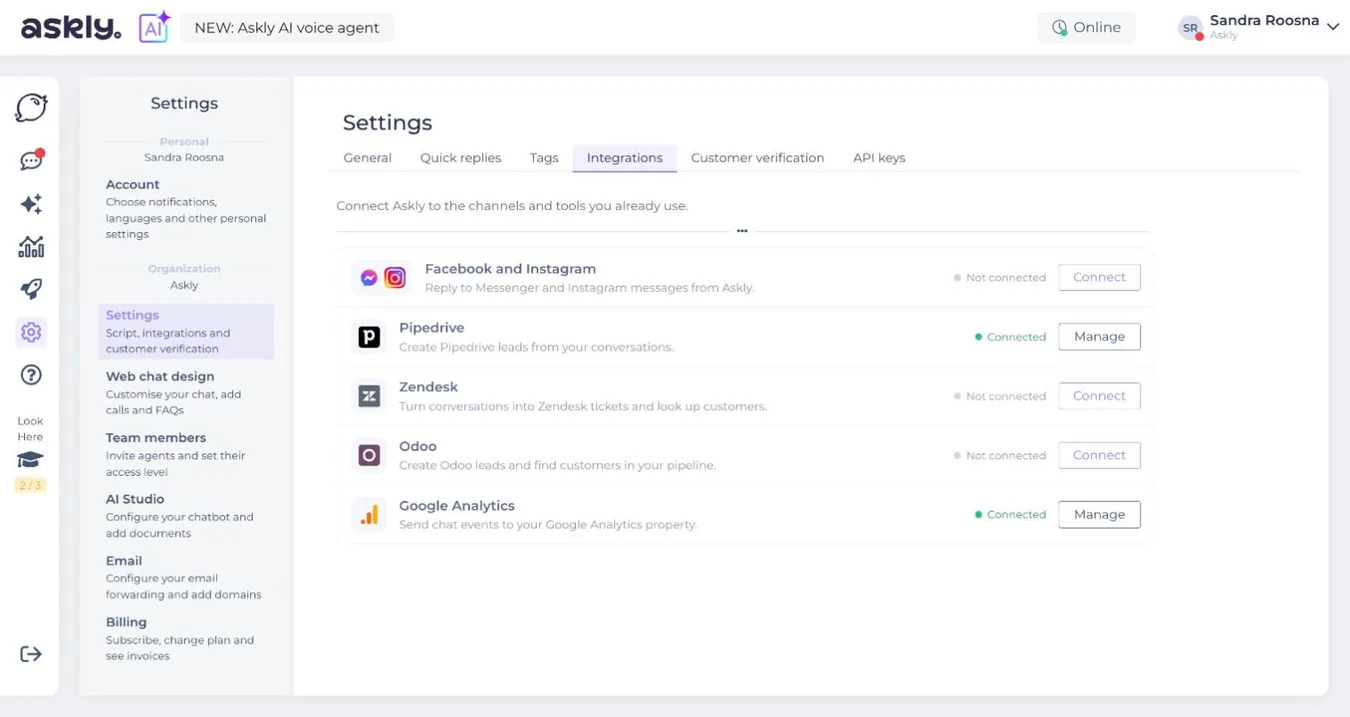
Settings › Integrations › Facebook and Instagram

Facebook Messenger and Instagram direct messages (not comments) arrive in your Askly inbox. You reply to them from one place. The AI replies on social media too, with live translation if needed.

  1. Under Facebook and Instagram, click Connect. Only a team member with admin rights can connect.
  2. Log in with your personal account. Don't worry: your personal messages don't move to Askly.
  3. Choose the page or pages whose messages you want in Askly, and confirm.

Customers always see your reply where they wrote. An icon shows whether a conversation came from the chat window, Messenger or Instagram.

Askly Settings, Integrations tab: Facebook and Instagram with the Connect button

Connect email

Settings › Email

Forward your emails to the Askly inbox. Then the chat window, social media and email are all in one place.

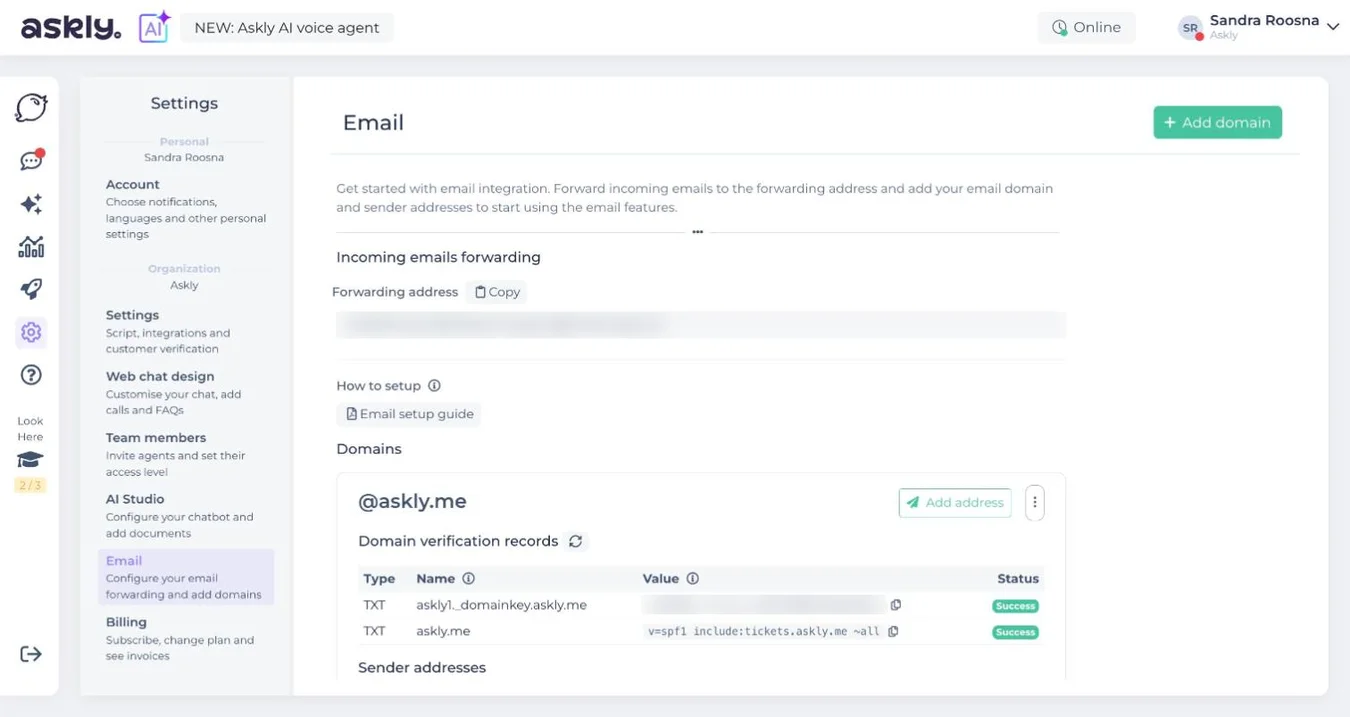
  1. Under Incoming emails forwarding, click Copy next to the Forwarding address.
  2. In your email admin (for example Zone, Gmail, Outlook, GoDaddy), set up forwarding to that address.
  3. Under Domains, click + Add domain and verify it, so Askly can reply from your address.

The guide is on the same page: Email setup guide.

Askly Email: Incoming emails forwarding with the forwarding address and Copy button, Email setup guide and Domains with + Add domain

Invite your team

Settings › Team members

Add team members and set their rights. Each invitee gets an email with a link to sign in to Askly. The account creator or an admin manages rights.

You can pass conversations to each other. In a conversation, click the arrow next to a team member's name. This works for chat window, Facebook and Instagram messages and emails. To create a department, invite the department's email address as a member.

Reply to conversations

If you use the AI Support Agent, AI conversations are in its own folder. The AI passes a conversation to you when needed, but you can take over at any time:

  1. Click Take over conversation.
  2. Choose the language you'll reply in. Askly remembers your choice.
  3. Write your reply and click Send.

You can save any reply as a quick reply. When the conversation is over, click Archive.

Live translation

Settings › Personal › Account

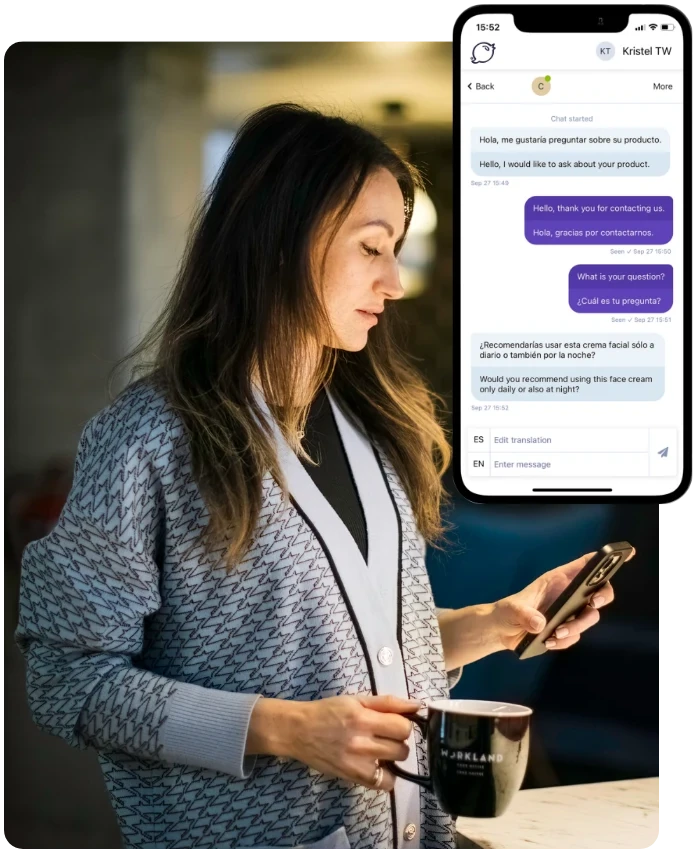
The whole Askly chat window is in the customer's language. Askly also translates the conversation live, both ways. You write in your language, and the customer reads in theirs. We only use paid neural machine translation.

To switch translation on, add the languages you reply in under Account. Translation kicks in when the customer's language isn't one of yours. In the same section, choose notifications: browser, email or mobile app.

A customer writes in Spanish, the team replies in English and Askly translates the conversation live

Quick replies

Settings › Quick replies

Save replies you use often. Your whole team and the AI can use them, on any device. You can always edit a reply before sending.

Customer data

Askly shows the customer's journey on your site, with each URL and time. It also shows location, browser and device. If a customer hit a technical error, you can pass all the details to your developer. No need to ask the customer.

You can add the customer's name, email and phone number at the start or during the conversation. Use the buttons next to the customer data.

Conversation history and search

Every archived conversation is kept. If the same customer gets in touch a day, a week or a year later, the history is there.

Search conversations, customers and tags. Filter by customer name, email or tags.

Analytics

You'll find the analytics icon in the dashboard's left menu. Askly collects data for each channel separately. Choose a period to see visitors and conversations by channel and day, by month or for all time.

Want weekly stats by email? Let us know in the chat window.

More questions? We're here to help.

Write to us in the chat window on this page. The AI replies around the clock and passes harder questions to our team.